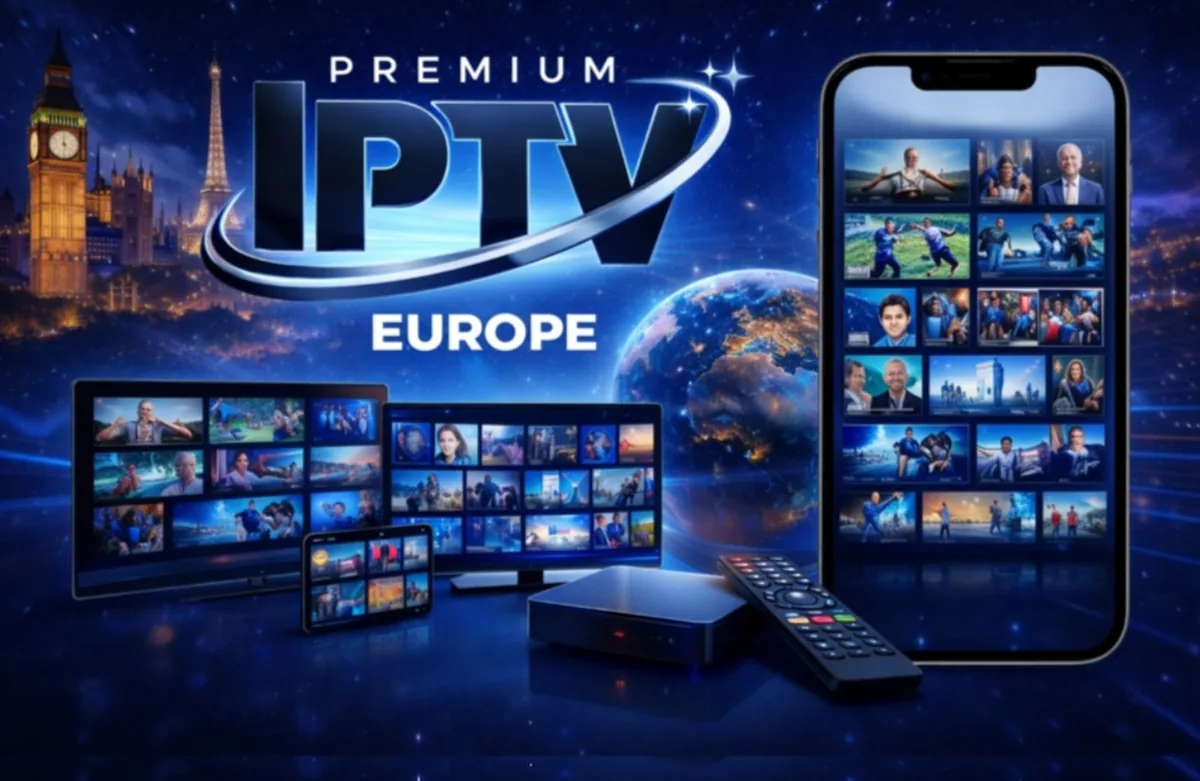
Setting up IPTV is easier than most people think. Whether you have a Smart TV, an Amazon Firestick, an Android phone, or a PC, this guide walks you through the installation process for each device. Before you begin, request your free IPTV test from test4k.com via WhatsApp and we will send you the credentials you need.
IPTV Setup on Smart TV (Samsung, LG, Hisense)
For Samsung and LG Smart TVs, the most common approach is using the built-in app store to download an IPTV player application. Once installed, open the app and enter the M3U URL or Xtream Codes credentials we provide via WhatsApp. The app will load all 45,000+ channels automatically.
IPTV Setup on Amazon Firestick
The Firestick is one of the best devices for IPTV. Enable installation from unknown sources in settings, then sideload an IPTV player app. Enter your test4k.com credentials and the channel list loads in seconds. The Firestick's hardware is well-suited to 4K Ultra HD streaming.
IPTV on Android Smartphones and Tablets
Android is arguably the most versatile platform for IPTV. Download an IPTV player from the Play Store, open it, and enter your test4k.com login details. You can stream live TV and VOD content in 4K on your phone, tablet, or Android TV box.
IPTV on PC and Mac
For computers, we recommend using VLC Media Player or a dedicated IPTV app. Simply open the M3U playlist URL we provide, and you have instant access to all channels and VOD content. This option requires no app installation in many cases and works on both Windows and macOS.
IPTV on iOS (iPhone and iPad)
iPhone and iPad users can access our IPTV service through a compatible IPTV player available on the App Store. Enter your credentials from test4k.com and start streaming. iOS devices handle 4K content very well, making them excellent IPTV players.
Ready to Start Your Free IPTV Test?
No credit card. Instant activation. Response within 5 minutes.
💬 Start My Free IPTV Test